Work and Rest
| Audience: | Vessel and Technical Users |
| Last Reviewed: | 08 October 2025 |
| Introduction: | This topic explains how to access ShipSure, the home-pages and how find and view information. |
| Training Manuals |
Training Manuals are available to all Crew and Shore Staff as a training aid to assist with learning how to use the ShipSure modules |

For the Vessel : When a vessel user logs into the ShipSure application, only the data applicable to their vessel will be available
For the Office : Below are the methods of accessing each Module within ShipSure and selecting a Vessel or a Fleet
User profiles : Defines which of the modules within the Work and Rest section of ShipSure are available for Actioning or are Read Only
Within ShipSure - the Work and Rest Module enables the user to perform operational and technical functions involved in vessel operations
Click on the [ShipSure] icon, then [Work and Rest] then select a module as required either Crew Hours or Head of Department View
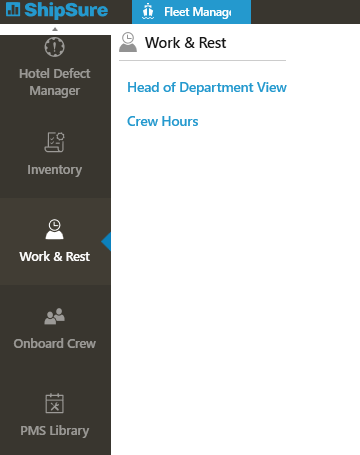
User roles define which modules appear listed in the Banner
Crew members will login by entering the Vessel Name, their own name and date of birth
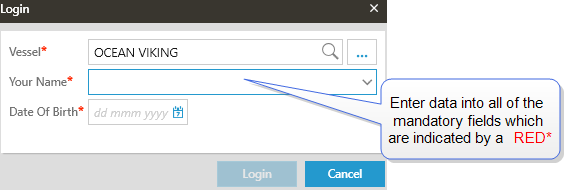
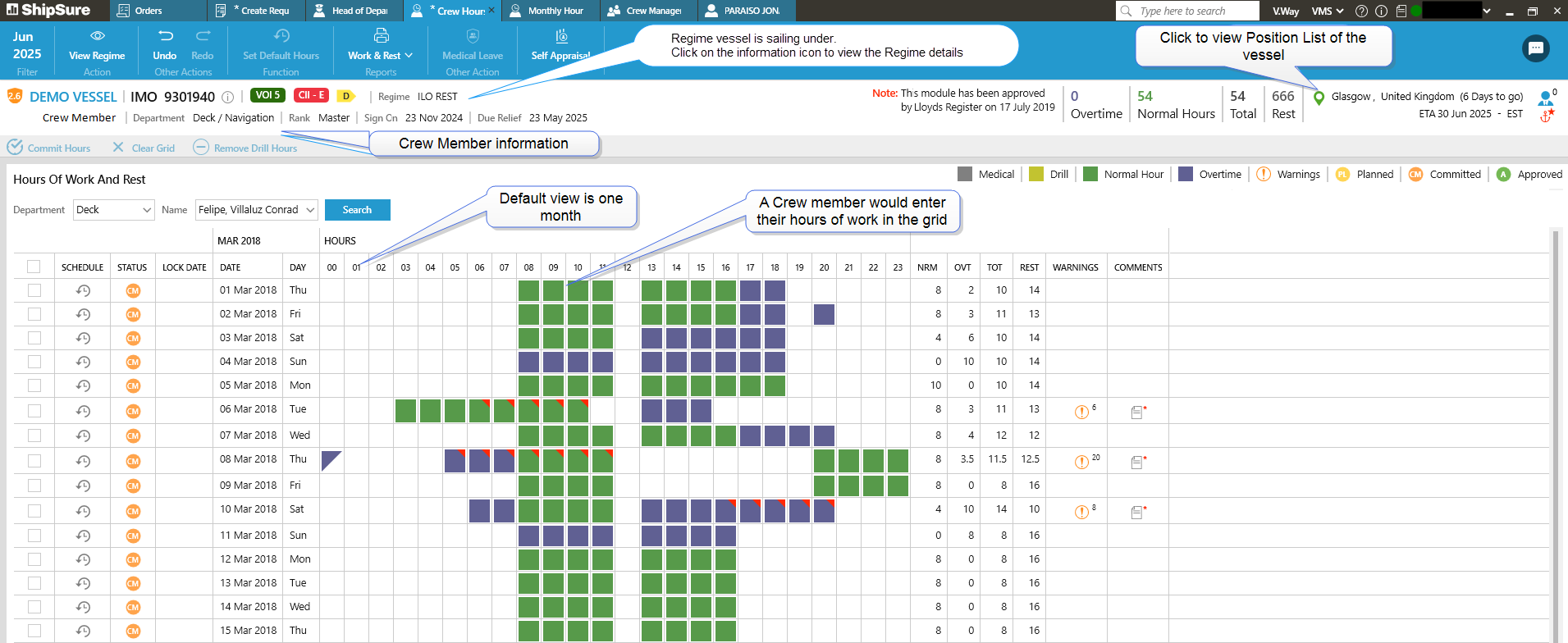
Then click on the login button. The default view of the Crew Hours will appear on screen. This is for one month and the date period can be changed as required
Selecting a vessel can be done in the following ways throughout the application
- Clicking on the
 icon or to reveal the vessel and fleet listing
 - Typing the Vessel name or Coy ID into the Search field

- or select the vessel from the Favourites, Fleets or Offices vessel listings
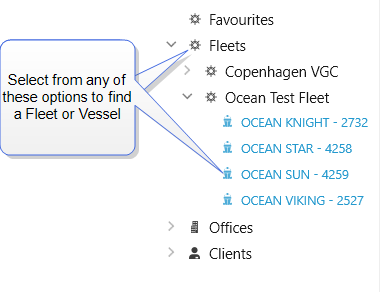
- By clicking on the icon again this will remove the vessel selection listing.
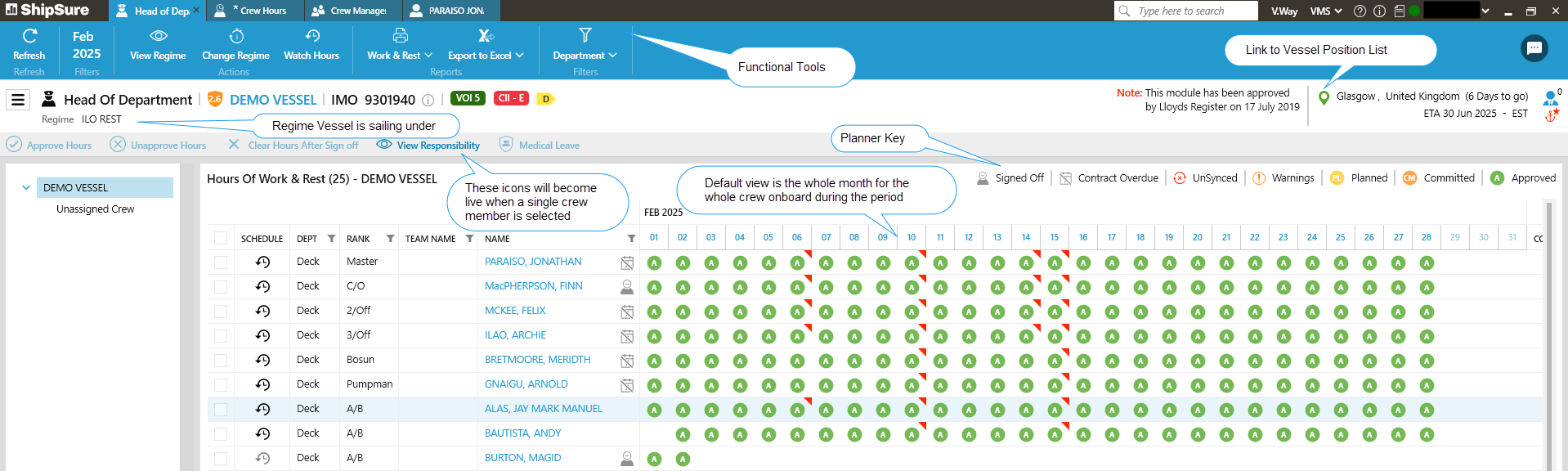
The default view of the Head of Department view ill appear on screen and will show the crow on board for the selected month